The Complete Guide to the 4iiii PRECISION 3+ PRO Powermeter Features, Set Up, Maintenance and Troubleshooting
Posted on May 7, 2026
The 4iiii PRECISION 3+ PRO Powermeter gives you total power, left/right balance, pedal smoothness, torque effectiveness, and Apple Find My, all in one crankset. Whether you’re setting it up for the first time or want to get more out of the one already on your bike, we’ve put together the ultimate guide to help you install, pai, calibrate, and troubleshoot your PRECISION 3+ PRO so you can get back to training smarter.
What Makes the 4iiii PRECISION 3+ PRO Powermeter Different?
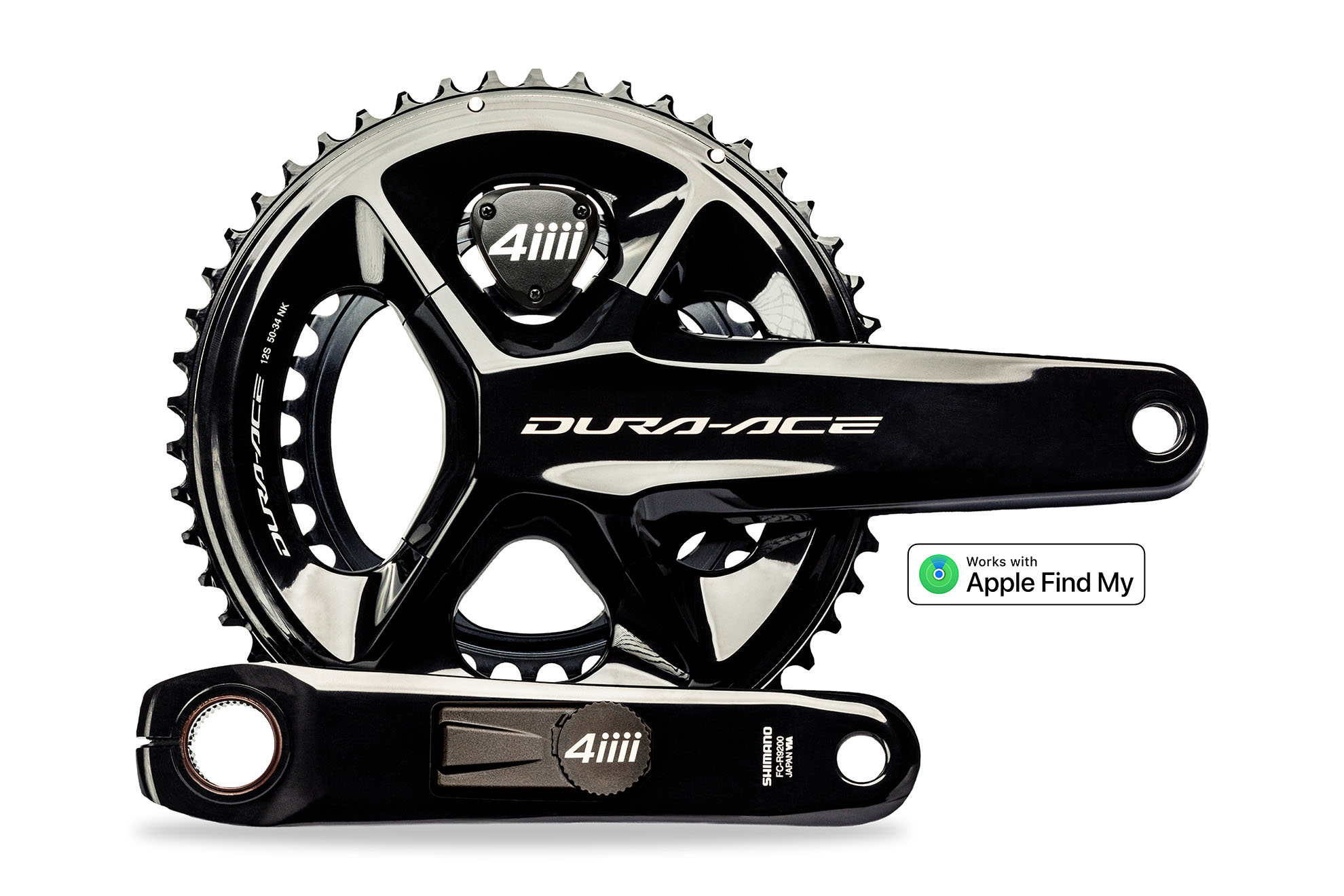
The PRECISION 3+ PRO is 4iiii’s dual-sided cycling power meter that measures power from both your left and right legs independently. As an ANT+ power meter with Bluetooth connectivity, it delivers total power output, left/right balance data, and advanced cycling metrics, all in the ultra-slim profile you expect from 4iiii. Plus Apple Find My technology built directly into the non-drive side pod. Everything you expect from 4iiii, with the complete picture of your pedal stroke.
FEATURES

What Features Does the 4iiii PRECISION 3+ PRO Powermeter Have?
- Apple Find My — Your power meter and the bike it’s on is trackable through the world’s largest finding network. Peace of mind, built right in. Note: Apple Find My is on the non-drive side pod only.
- ±1% Accuracy — Precisely manufactured and tested to a tight ±1% accuracy tolerance using patented 3D Strain Gauge technology that measures the lateral bend, pull, and twist of the crank.
- Up to 550 Hours of Battery Life — Two standard CR2032 coin cell batteries, one per pod. Note: non-drive side battery life will vary depending on Apple Find My usage.
- Left/Right Balance — Measures the power from each individual leg independently to calculate your total power output and show how each leg is contributing.
- Cycling Metrics — Get pedal smoothness and torque effectiveness data to analyze and optimize your pedal stroke.
- Automatic Terrain Selector — Detects the terrain you’re riding on for more responsive cadence and power feedback.
- ANT+ and Bluetooth — Get the same numbers training inside and outside. Compatible with your preferred head unit and favorite indoor training apps. ANT+ range of 15 metres allows simultaneous connection to multiple devices.
- Waterproof — IPX7 rated and dust-proof, maintaining precision across an operating temperature range of 0°C to 50°C.
- 3-Year Warranty — An industry-leading warranty because 4iiii stands behind every power meter they make.
4iiii PRECISION 3+ PRO Powermeter Technical Specifications
| Parameter | Specification |
|---|---|
| Accuracy (Power Error) | ±1.0% |
| Weight | NDS 9 grams + DS 20 grams = 29 grams total |
| Battery Type | CR2032 Coin Cell (x2) |
| Battery Life | NDS up to 800 hours / DS up to 550 hours |
| Operating Temperature | 0°C to 50°C |
| Storage Temperature | -40°C to 60°C |
| Weather Sealing | IPX7 |
| Cadence Output | 30–170 RPM |
| Maximum Power Output | 0–4,000 watts |
| Communication | ANT+ and Bluetooth |
| ANT+ Range | 15 metres |
| ANT+ Frequency | 2.457 GHz |
| ANT+ Features | Cadence, Power, Zero-Offset, Torque Effectiveness, Pedal Smoothness, Left/Right Balance, Low Battery Notification |
| Bluetooth Range | 15 metres |
| Bluetooth Frequency | 2.400–2.4835 GHz |
| Bluetooth Features | Cadence, Power, Zero-Offset |
Apple Find My on the 4iiii PRECISION 3+ PRO Powermeter
Does the PRECISION 3+ PRO come with Apple Find My?
Yes, the PRECISION 3+ PRO comes with Apple Find My pre-installed on the non-drive side pod — no setup required beyond connecting it to your Find My account.
Note: Apple Find My is integrated into the non-drive side pod only. The drive side pod does not include the feature.
How do I know if my PRECISION 3+ PRO has Apple Find My?
If you purchased a PRECISION 3+ PRO, Apple Find My is already enabled on the non-drive side pod. To confirm, look for two things:
- Firmware version — Apple Find My is only available on firmware version 2.3.0 or newer. Check your current version in the 4iiii app under Device Settings.
- Physical etching — Every Find My-enabled power meter has a “Find My” etching on the side of the pod. If it’s there, you have it.
What are the iOS requirements for Apple Find My on the PRECISION 3+ PRO?
- iPhone: iOS 14.5 or newer
- iPad: iPadOS 14.5 or newer
- Mac: macOS Big Sur 11.1 or newer
SET UP

Where to Find Your 4iiii PRECISION 3+ PRO Powermeter Manual — Get Set Up in Minutes
Two documents, zero guesswork — here’s everything you need to get your PRECISION 3+ installed and you out riding.
-
PRECISION 3+ PRO Setup Page — An intuitive, easy-to-navigate guide to help you get started.
-
PRECISION 3+ PRO Quick Start Guide — A short summary of how to get started. Great for getting up and running fast.
-
PRECISION 3+ PRO User Manual — The complete set of instructions, covering everything from installation to settings and troubleshooting.
How to Install the 4iiii PRECISION 3+ PRO Powermeter
Install your 4iiii dual power meters and crankset following the crankset manufacturer’s instructions. The steps to install the crankset vary between models. Follow the manufacturer’s instructions, or consult your local bike mechanic for assistance. Installation instructions for your Shimano crankset are included with the Ride Ready option.
Important: After installing the crankset, spin it by hand and ensure there is clearance between your frame and the power meter pods on both the drive side and non-drive side. If there is contact between either power meter and your frame, do not ride your bike — contact support@4iiii.com immediately.
How to Pair the 4iiii PRECISION 3+ PRO Powermeter with the 4iiii App — Including Linking as a Dual
Download the 4iiii app by searching for “4iiii” on the Apple App Store or Google Play Store. Find the complete 4iiii App User Guide here.
- Open the 4iiii app and log in. If this is your first time, create an account. The app will take you directly to the Devices tab.
- Spin the crank 3–4 times to wake up your power meter.
- Select Add a Device.
- Select BOTH of your power meter pods from the list of available devices at the same time. A check mark indicates each device is selected.
Tip: If you select both power meters at the same time from the list of available devices they will automatically pair as a dual. - Press Pair.
- Once both power meters are added, if they did not automatically link, tap Pair Device to link them as a dual.
Tip: You can identify your power meters using the ANT+ ID numbers etched onto the side of the non-drive side pod and the back of the drive side pod.
How to Pair the 4iiii PRECISION 3+ PRO Powermeter with a Display Unit
To view and record power, cadence, and left/right balance data, pair your power meter with a compatible head unit using Bluetooth or ANT+. Consult your head unit or watch manufacturer for compatibility and specific pairing instructions.
Generic ANT+ pairing steps:
- Pair your power meters as a dual (see steps above).
- Turn on your display unit.
- Spin the crank 3–4 times to wake up your power meter.
- Navigate to the Sensors menu on your display unit.
- Add a new sensor.
- Select only your non-drive side power meter ANT+ ID from the list of available devices and connect.
Once paired, most display units will remember your power meter and automatically connect when both devices are on.
Available power meter metrics on compatible display units:
- Power (1 sec, 3 sec, 10 sec)
- Normalized Power
- Intensity Factor
- TSS (Training Stress Score)
- Power Balance (dual power meters only)
- Cadence
Note: You will need to enable a left/right balance data field on your cycling computer to view the balance data. Refer to your cycling computer’s manual for how to add data fields.
How to Perform a Zero Offset on Your 4iiii PRECISION 3+ PRO Powermeter
Power meter calibration — also called a zero offset — should be done before every ride, and it takes less than a minute. Before you start, allow the power meters a few minutes to adjust to the ambient riding temperature for optimal performance.
Using your display unit:
- Unclip and dismount from your bike.
- Spin the crank arms 3–4 times to wake your power meter.
- Connect your power meter to your display unit.
- Place your crank arms at 12 and 6 o’clock, with the non-drive side crank arm pointing down. Hold the bike stable and upright.
- Navigate to the Zeroing or Calibration menu and press “Zero” or “Calibrate.”
Tip: If you get an error message, double-check that the bike is stable, upright, and the cranks are in the correct position.
ANT+ zero offset response codes:
| Code | Result | Description | What to Do |
|---|---|---|---|
| 1010 | Success | Go ride! | |
| 1020 | Error | Right — unstable data | Keep your bike completely steady |
| 2010 | Error | Left — unstable data | Keep your bike completely steady |
| 1050 | Error | Right — firmware error | Connect to the 4iiii app to update firmware |
| 5010 | Error | Left — firmware error | Connect to the 4iiii app to update firmware |
| 1099 | Error | Right — communication error | Connect to the 4iiii app and pair as a dual |
| 9910 | Error | Left — communication error | Connect to the 4iiii app and pair as a dual |
Using the 4iiii app:
- Download the 4iiii app.
- Unclip and dismount from your bike.
- Spin the crank arms 3–4 times to wake your power meters.
- From the Devices tab, tap the Zero Offset icon below your power meter’s name.
- Place your crank arms at 12 and 6 o’clock, non-drive side down. Keep the bike stable and upright, then tap the crank arm image in the app.
How to Set Up Apple Find My on Your 4iiii PRECISION 3+ PRO Powermeter
The Apple Find My network provides an easy, secure way to locate your power meter on a map using the Find My app on your iPhone, iPad, or Mac.
Note: Apple Find My is on the non-drive side pod only. The pod will not start sending its location until it has been out of use for 4 minutes. Any movement will trigger the gyroscope and switch the pod back from Find My mode to power meter mode.
- Enter the non-drive side pod into Find My pairing mode by removing and replacing the battery three times (3x). The pod will start flashing blue and will remain in this mode for 10 minutes or until setup is complete.
Tip: If it does not start blinking, the pod is already set up in Find My. - Open the Apple Find My app on your iPhone, iPad, or Mac and tap Items in the bottom banner.
- Tap Add Item or the ’+’.
- Tap Other Supported Item or Add Other Item.
- The app will search for nearby devices. When the 4iiii PRECISION 3+ PRO Powermeter appears, tap Connect.
Tip: If you have paired before and it doesn’t appear, reboot your iPhone to clear the cache and try again. - Give your power meter a name and emoji — you’re all set.
Note: Your PRECISION 3+ pod will not start sending its location until it has been out of use for 4 minutes. Any movement will trigger the gyroscope and switch the pod back from Find My mode to power meter mode.
How to Connect Your 4iiii PRECISION 3+ PRO to Zwift, TrainerRoad, and Third-Party Apps
Using your 4iiii power meter with a third-party app like Zwift is straightforward, but how you connect depends on your device.
- Smartphones and tablets — Your power meter will connect directly without any additional accessories.
- Laptops and desktop computers — Direct connection via Bluetooth Low Energy (BLE) is supported on most laptops. If your laptop or desktop computer does not support BLE, you can use an ANT+ dongle.
How to Make Sure Your 4iiii PRECISION 3+ PRO Has the Latest Firmware
Keeping your firmware up to date ensures you always have the latest performance improvements and features. We recommend updating whenever prompted.
- Connect with your power meters in the 4iiii app.
- Select the power meters from the Devices tab to view Device Settings.
- Select Update Firmware (iOS) or Update (Android). Do not close the app during a firmware update.
Tip: The Update Firmware button will be greyed out if no updates are available.
Advanced Features in the 4iiii App for PRECISION 3+ PRO Powermeter
The 4iiii app can be used to customize the following advanced features:
- Rename your power meters — Give your devices custom names for easy identification.
- Set scale factor — Compensate for left/right leg imbalances, or match your power output to a third-party power meter or smart trainer.
- Enable third-party compatibility mode on Bluetooth — Allows connection to display units that do not support separate left and right leg power data for a dual power meter.
Find full instructions for these features in the 4iiii App User Guide.
MAINTENANCE

How to Replace the Batteries in Your 4iiii PRECISION 3+ PRO Powermeter
Your power meter set comes with two CR2032 coin cell batteries — one per pod. Replacement CR2032 batteries can be purchased wherever batteries are sold. We recommend avoiding batteries with a bitter coating, as it has been shown in tests to be non-conductive and can lead to connection problems or dropouts.
Non-drive side pod - Threaded cap:
- Twist the cap counterclockwise to remove it. Do not pry the cap.
- Remove the old battery by holding the cap by its edges and tapping it against a hard surface.
- Place the new battery into the cap with the ‘+’ symbol facing the battery cap.
- Replace the cap and twist it clockwise to secure it.
Non-drive side pod - Screw cap:
- Using the provided 2mm Allen key, loosen the four screws counterclockwise — they will remain attached to the cap.
- Remove the old battery by holding the cap by its edges and tapping it against a hard surface.
- Place the new battery into the cap with the ‘+’ symbol facing the battery cap.
- Replace the cap and tighten the screws.
Drive side pod — Phillips screwdriver:
- Using a Phillips #1 screwdriver, loosen the three screws counterclockwise.
- Remove the old battery.
- Place the new battery into the compartment with ‘+’ facing outwards towards you.
- Reinstall the battery cap and tighten the three screws.
Drive side pod — Allen key:
- Using the provided 2mm Allen key, loosen the three screws counterclockwise.
- Remove the old battery.
- Place the new battery into the compartment with ‘+’ facing outwards towards you.
- Reinstall the battery cap and tighten the three screws.
Tip: Check the condition of the rubber seal on the battery cap when replacing your battery. To ensure a watertight seal, keep the seal lubricated with silicone grease and replace any caps that appear worn or damaged.
How to Clean Your 4iiii PRECISION 3+ PRO Powermeter — Two Minutes, No Excuses
Keeping your power meter clean is simple — just use the right materials.
- Prepare a mixture of warm water and mild soap.
- Using a soft rag soaked in the mixture, wipe down your power meters and cranks.
- Wipe the pods with a dry cloth.
Do not expose the power meters to degreasers or abrasive/corrosive cleaning agents.
Do not pressure wash your power meter.
Do not have liquids near the power meters when the caps are off for maintenance.
Storage: Store your power meter in temperatures no colder than -40°C (-40°F) and no warmer than 60°C (140°F).
How to Perform a Power Meter Factory Reset on the 4iiii PRECISION 3+ PRO
If you are experiencing persistent issues, a factory reset via the 4iiii app can restore the original factory calibration settings.
- Wake up the power meters by rotating the crank 3–4 times.
- In the 4iiii app, choose the device you want to reset and select Connect.
Tip: the ANT+ ID is etched on the side of the pod if you’re unsure which device to select. - Select the power meter to enter the Device Settings screen, then tap the black settings button.
- From the list of options, choose Factory Reset Power Meter, then when prompted, choose Yes.
How to Unlink and Use the PRECISION 3+ PRO as a Single-Sided Power Meter
If you have a dual-sided power meter, you can use either the left or right side — or both — individually as single-sided power meters. Simply unlink them in the 4iiii app and connect only the relevant side to your cycling app or computer.
To unlink a dual power meter set:
- Open the 4iiii app.
- Spin the crank 3–4 times to wake up your power meters.
- Under Devices, tap Unpair. The devices will now appear separately.
Note: After unlinking, each power meter will automatically double your power output to give you total power.
How to Disable Apple Find My on Your 4iiii PRECISION 3+ PRO Dual Powermeter
Option 1 — Temporary disable: Disabling Apple Find My temporarily simply requires removing the cap and battery from the main power meter body. For detailed instructions refer to the section above on battery replacement.
Option 2 — Find My Factory Reset: To permanently deactivate Apple Find My, perform a Find My Factory Reset through the 4iiii app:
- Wake up the non-drive side pod by rotating the crank 3–4 times.
- In the 4iiii app, select the non-drive side device and tap Connect.
Tip: the ANT+ ID is etched on the side of the pod if you’re unsure which device to select. - Enter the Device Settings screen and tap the black settings button.
- Choose Factory Reset Find My, then tap Start when prompted.
- Remove the battery for 5 seconds, then reinstall it. The pod will blink green to confirm the reset was successful.
TROUBLESHOOTING

Your 4iiii PRECISION 3+ PRO LED Light Sequences — What They Mean
Each pod has an LED light that communicates battery level, connection status, and calibration results. Here’s what each sequence means.
Start-up sequence:
| Light Sequence | Meaning |
|---|---|
| Slow blue blinks | Find My pairing mode (non-drive side pod only) |
| Red, Green, Blue | Start-up sequence (power meter is on) |
| 5 red blinks | Battery ≤ 100% |
| 4 red blinks | Battery ≤ 80% |
| 3 red blinks | Battery ≤ 60% |
| 2 red blinks | Battery ≤ 40% |
| 1 red blink | Battery ≤ 20% (replace soon) |
Zero offset sequence:
| Light Sequence | Meaning | What to Do |
|---|---|---|
| 1 blue blink | Zero offset successful | You’re good to ride |
| 2 blue blinks | Error: Unstable gauge | Keep the bike and crank completely steady |
| 3 blue blinks | Error: Low battery | Check battery level in the 4iiii app and replace if needed |
| 4 blue blinks | Error: Mismatched firmware | Connect to the 4iiii app and update your firmware |
| 5 blue blinks | Error: Invalid calibration | Connect with the 4iiii app for diagnostics |
My 4iiii PRECISION 3+ PRO Battery Isn’t Working After Replacement — What Do I Do?
If your CR2032 battery replacement has left your power meter unresponsive, the culprit is almost certainly a bitter coating on the battery itself. The bitter coating — commonly found on the negative side of batteries like the Duracell CR2032 — has been shown in tests to be non-conductive. This can cause connection problems or complete dropouts with your power meter.
Batteries with a bitter coating display a child-safety symbol on the packaging. If your replacement battery has that symbol, swap it out for an uncoated CR2032 from another brand and try again. That simple swap fixes the problem in most cases.
Tip: Isopropyl alcohol works to remove the bitterant from the surface of a CR2032 battery. Apply to a paper towel or cotton swab, rub lightly, and let it dry.
My 4iiii PRECISION 3+ PRO Won’t Connect or Pair via ANT+ or Bluetooth
- Make sure both power meters are awake by spinning the crank several times.
- Check the battery levels using the 4iiii app.
- Remove the power meters from the sensor list and pair them again.
- Replace batteries with new ones after leaving the power meters without batteries for 10 seconds to reset the devices. Ensure the new batteries do not have a bitter coating.
- For Bluetooth: the power meter can only be connected to one device or app at a time. Ensure you have deleted the power meters from all other devices or apps before connecting.
My 4iiii PRECISION 3+ PRO Is Reading Inaccurately — What Should I Check?
Run through this checklist before contacting support:
- Update firmware — Always ensure your power meter has the latest firmware version.
- Zero offset regularly — Perform a zero offset before every ride after your bike has acclimated to conditions.
- Check battery levels — Replace your battery when it drops below 20%.
- Factory reset — If issues persist, a factory reset via the 4iiii app can restore original calibration settings.
- Check crank installation — Confirm your crank is installed and torqued exactly to manufacturer specs. Incorrect installation is a common cause of inaccurate readings.
- Water ingress — If the inside of the battery compartment is wet, air dry with the cap off and battery out for 24–48 hours.
- Signal interference — Turn off unnecessary Bluetooth or ANT+ devices nearby, especially important indoors.
- Cycling computer firmware — Make sure your cycling computer firmware is up to date.
I’m Not Getting Left/Right Balance Data on My PRECISION 3+ PRO — What’s Wrong?
There are two things to check:
-
Pair both sides as a dual in the 4iiii app — Both the drive side and non-drive side pods must be paired together as a dual. If they were connected separately, unlink them and re-pair as a dual following the steps in the Set Up section above.
-
Enable the left/right balance data field on your cycling computer — The data field must be specifically enabled on your head unit to display balance information. Refer to your cycling computer’s manual for how to add data fields.
I’m Getting a Zero Offset Error on My PRECISION 3+ PRO — What’s Wrong?
A calibration error most often means the crank was not stationary or in the correct position. Ensure the bike is upright, stable, and the cranks are positioned vertically at 12 and 6 o’clock. The PRECISION 3+ PRO uses 4-digit response codes — refer to the ANT+ response code table in the Set Up section above for specific codes and solutions.
Why Is My PRECISION 3+ PRO Showing Cadence But No Power?
- Disconnect and delete the power meters from your cycling computer or app, then reconnect them as new sensors. When connecting to a head unit, only connect as a power sensor — not as both a power and cadence sensor.
- Perform a calibration/zero offset.
- Go for a short test ride.
If the problem persists, contact us here.
My 4iiii PRECISION 3+ PRO Is Dropping Out or Losing Connection
- Ensure the latest firmware is installed via the 4iiii app.
- Replace batteries with new CR2032 (avoid bitter-coated batteries).
- Check for sensor conflicts on your head unit. A speed/cadence sensor running alongside the power meter can cause signal conflict since the power meter is also communicating cadence.
- Perform a zero offset before your next ride.
My PRECISION 3+ PRO Is Touching My Frame — Here’s What To Do
If you recently purchased a Ride Ready PRECISION 3+ PRO, and after installation either pod contacts your frame, then your bike does not have adequate clearance for the power meter. We suggest that all customers use our Clearance Check Guide prior to ordering a Ride Ready power meter, but depending on where you purchased the power meter, we appreciate that this step may have been missed.
If you have received a power meter, and it does not clear your frame, we recommend returning it to your original dealer, and then making a purchase of a Factory Installed power meter. With a Factory Installed power meter, we are able to customize the location of the power meter on the crank arm to best fit your bike.
I Lost My Battery Cap — How Do I Get a Replacement?
Replacement battery caps with O-ring seals are available on the 4iiii website under Parts & Accessories.
GENERAL FAQs

Why Do My Power Numbers Look Different on Different Devices?
Many cyclists use multiple power meters (on their bike and/or smart trainers), leading to questions about different power readings. It’s normal for power data to vary between devices or even the same device used indoors versus outdoors. Here’s why:
- Indoor vs. outdoor riding — Indoors is a controlled environment with no wind, steady temperatures, and a fixed position. Outdoors introduces variables like wind, terrain changes, and varied riding styles.
- Different measurement locations — Power meters placed at different points (pedals, crank arm, bottom bracket, rear hub, or trainer) experience different forces and can yield varying results.
- Frame material — Steel, aluminum, and carbon fiber have unique properties that can affect power transmission and readings.
- Brand algorithms — Different manufacturers use different methods to calculate power, which can lead to small discrepancies.
Power matching with 4iiii
If your 4iiii power meter shows slightly different numbers than another device, use the Scale Factor setting in the 4iiii app to align them. For example, if your 4iiii reads 5% lower than your trainer, set the scale factor to 1.05. The most important aspect of a power meter is consistency — as long as your devices read consistently, you can accurately track and compare your training data over time.
What Weather Conditions Can the 4iiii PRECISION 3+ PRO Handle — Including Extreme Temperatures?
Ride confidently in any weather. The PRECISION 3+ PRO is waterproof with an IPX7 submersible rating and dust-proof, maintaining precision across an operating temperature range of 0°C to 50°C. And when temperatures swing mid-ride, you’re covered — 4iiii power meters feature active temperature compensation, with internal sensors that adjust power readings in real-time as conditions change, a process thoroughly tested during manufacturing. For best results, perform a zero offset after your bike has acclimated to the outdoor temperature before heading out. For optimal protection, always secure both battery caps and avoid direct high-pressure water streams.
Can I Use My 4iiii PRECISION 3+ PRO to Understand My Left/Right Leg Imbalance?
Yes, this is one of the biggest advantages of a dual-sided power meter. The PRECISION 3+ PRO measures each leg independently, giving you real-time left/right balance data on every ride. You can view this directly on your head unit once you’ve enabled the power balance data field.
Can I Use Oval Chainrings with My 4iiii PRECISION 3+ PRO?
Like most power meters, the PRECISION 3+ PRO will show a slight overestimation of power when used with oval chainrings. This is because oval rings create variable velocity through the pedal stroke, unlike round rings with constant velocity. You can expect an overestimation of approximately 1–4% depending on your chainring’s ovality. If you prefer riding with an oval chainring, there are no functional issues — just be aware your power numbers may be marginally skewed.
Can I Still Change My Chainrings with a 4iiii PRECISION 3+ PRO Installed?
Yes, the design of the drive-side power meter on compatible Shimano road cranks (Ultegra, Dura-Ace) fully accommodates chainring removal and replacement with Shimano OE chainrings.
Note: 4iiii dual power meters on Shimano cranks are not compatible with aftermarket chainrings from other manufacturers.
Are 4iiii Power Meters ANT+ and Bluetooth Compatible?
Yes, 4iiii power meters communicate over both ANT+ and Bluetooth, with a range of 15 metres, letting you connect to an enormous catalog of head units, sport watches, smartphones, and computers indoors and out.
How Do I Find My 4iiii PRECISION 3+ PRO Serial Number or Device Info?
You can locate each pod’s serial number directly through the 4iiii app. Connect to your power meter and select it from the Devices tab. Navigate to the Device Settings page and tap the Settings button at the bottom of the screen. From there, click on Device Info to view your serial number alongside other hardware details including Device Name, ANT+ ID, Device Type, Firmware Version, Boot Version, and Model Number.
The 4iiii PRECISION 3+ PRO is built for riders who want the complete picture — total power, left/right balance, pedal metrics, and Apple Find My, all in one dual-sided package. Whether you’re fine-tuning your zero offset, decoding a light sequence, or setting up Apple Find My for the first time, everything you need is right here.
Have more questions? Visit the 4iiii Help Centre
Ready to ride? Shop the 4iiii PRECISION 3+ PRO Powermeter